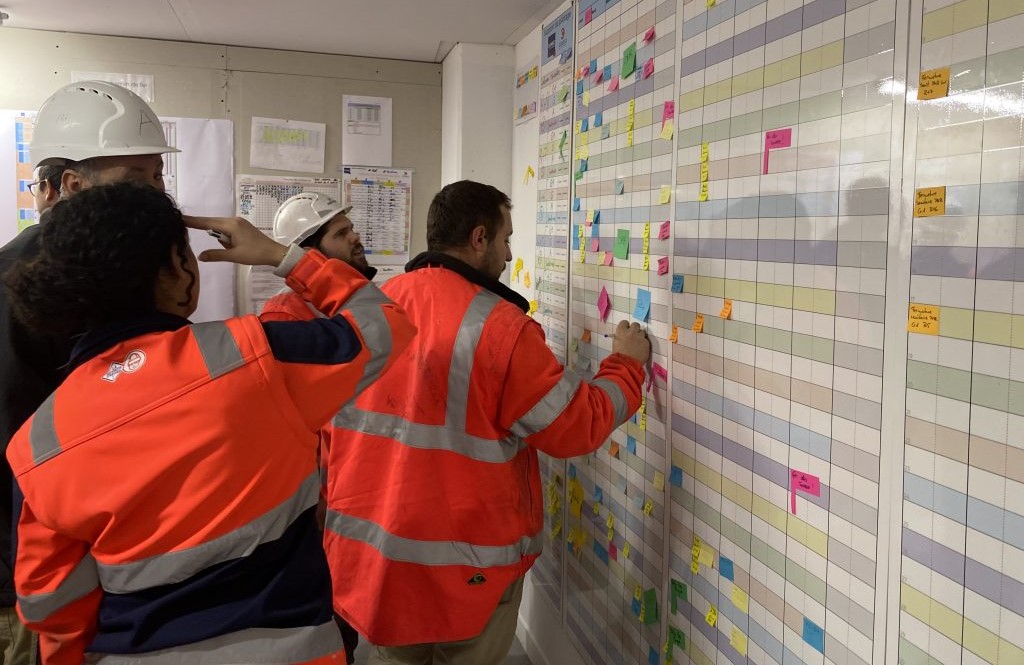
Excel is often underestimated, yet it can be a powerful tool for organizing construction schedules. This guide explains how to get the most out of spreadsheets when planning and managing your construction projects.
💡 Preparation is crucial to an effective construction schedule. Before opening Excel, make sure you understand exactly what your schedule needs to achieve.
Preparing before you begin
Define the objectives of your schedule
The first step in creating an effective schedule is to clearly define its objectives.
- What do you want the schedule to accomplish? Is it intended for daily progress tracking, resource management or anticipating potential scheduling conflicts?
Clarifying these questions is essential. Set measurable objectives, such as reducing material delivery lead times by 15% or increasing workforce efficiency by 20%. Although this may seem formal, it aligns stakeholders and helps turn the schedule into a practical management tool that moves the whole team forward.
Gather the necessary information
Once your objectives are clear, the next step is data collection. This phase is frequently underestimated, although it is just as important.
- What information is essential to building your schedule?
You will need a detailed task list, estimated durations, available resources, time constraints and dependencies between activities. Gathering this information requires close communication with site managers, suppliers and sometimes clients. Be thorough and accurate: missing or incorrect information can create costly delays and unnecessary frustration.
Creating your construction schedule in Excel
After preparing carefully, it is time to build your schedule in Excel. More than a data-entry tool, Excel offers advanced functionality that construction project managers can use to organize complex work.
Enter and structure your data
Data entry should be structured and consistent to prevent errors. Start with a clear table and separate columns for tasks, start and end dates, duration, resources and other relevant details. Use consistent date formats and units throughout the spreadsheet. This makes the schedule easier to read and ensures that calculations remain reliable.
Use Excel formulas and functions
Excel formulas are useful for automating calculations. Functions such as SUM, VLOOKUP and IF can process information according to your project requirements. For example, an IF formula can help adjust or flag dates based on delays or task progress.
Add charts and pivot tables
Charts and pivot tables take your schedule further by helping teams visualize progress, resource use and deadlines. A Gantt chart built in Excel provides an overview of the project timeline and makes overlapping activities and periods of low activity easier to spot.
Going beyond Excel with Toolkit
Although Excel remains useful for basic scheduling, specialized software such as Toolkit can transform the way construction projects are managed. Toolkit supports planning while making it easier to track changes, communicate and share updates in real time. It represents a move toward more integrated, responsive project management.
Track scheduling changes with Toolkit
Tracking modifications is essential in a fast-moving construction environment. Toolkit makes this process more transparent by recording schedule changes and their history. Changes may include dates, resource allocations or task updates. This information helps managers spot trends, anticipate issues and maintain a reliable record for reviews and audits. A clear change history also keeps everyone informed and accountable.
Communicate and share the schedule with Toolkit
Communication is central to every successful project. Alongside scheduling, Toolkit makes it easier to share current information among stakeholders. Real-time access to the schedule allows people in the office and on site to see the latest updates, improving collaboration and keeping expectations aligned throughout the project.
Toolkit can also send automatic notifications when important updates occur or a specific action is required, helping prevent critical information from being missed. These features allow team members to contribute using accurate, up-to-date information.
💡 Integrating Toolkit into site operations goes beyond traditional Excel capabilities. Instead of relying solely on a static spreadsheet, teams can use a connected system designed around the evolving needs of a construction project. This can reduce errors and improve both efficiency and coordination.

Conclusion
Excel provides a solid foundation for creating construction schedules. Formulas, pivot tables and charts help teams organize, monitor and visualize project progress. Using these features carefully makes schedules clearer and more accurate. Dedicated tools such as Toolkit extend these possibilities with connected updates and collaboration.
Knowing how to manage construction schedules in Excel is a useful skill for construction professionals. However, teams looking to further improve productivity and communication should also explore solutions designed specifically for the demands of modern construction sites.
Get started with Toolkit.

15-day free trial